
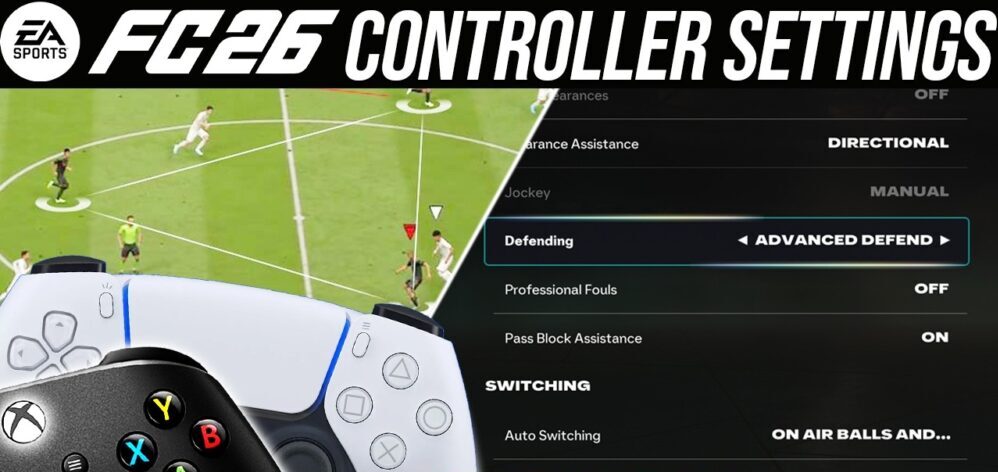
Knowing how best to handle controller settings can make a bigger difference than most players realise, particularly in competitive matches where a late player switch, an overpowered pass, or half a second of unnecessary trigger resistance can turn a promising attack into another frustrating defeat.
There is no magical combination that suddenly makes a player unbeatable. Still, there is a sensible competitive setup that removes several unnecessary layers of assistance, gives you more control over passing and defending, and makes your controller inputs feel more predictable when matches become frantic.
That matters even more in FC 26 because EA has built the game around a more demanding balance between player control and assistance, with settings such as Precision Shooting, Advanced Defending, manual switching options and Pass Receiver Lock giving experienced players more room to influence individual moments.
EA also confirms that Analog Sprint, Trigger Effects and vibration can all be switched independently, giving players plenty of scope to strip away distractions from their controller.
The setup below is aimed primarily at Division Rivals, Champions and other competitive online matches, rather than someone looking for the most relaxed Career Mode experience.
- Start with the Competitive preset
- Best FC 26 Shooting Settings
- Passing Settings That Give You More Control
- Defending Settings Can Change Your Entire Game
- Pass Block Assistance: Keep it On
- Player Switching Is Where Matches Are Often Won
- Right Stick Switching: Player Relative or Ball Relative
- Next Player Switching: Closest to Ball
- Player Lock should be on for advanced players
- Controller vibration should be turned off
- Turn Trigger Effects off
- Analog Sprint: Off for Most Players
- The Best Complete FC 26 Controller Setup
- Your Internet Connection Matters
- Camera Settings Matter
- Do Not Change Settings After Every Defeat
- The Best FC 26 Settings Are The Ones You Can Execute
Start with the Competitive preset
The first setting to change is the Controller Preset, which should be set to Competitive when you are playing seriously online.
This gives you the appropriate competitive framework before you start adjusting individual controls, and it prevents you from building your setup around assistance that may not translate properly into the faster, more demanding online modes.
Once that is done, the real work begins, because several settings deserve to be changed individually rather than blindly accepting everything the preset gives you.
The important thing here is consistency.
You do not want to change five settings every time you lose a match because your opponent scored a 90th-minute winner, since constantly rebuilding your controls prevents your hands from developing the muscle memory needed for difficult defensive and attacking actions.
Pick a setup, understand what each setting changes, and then give yourself enough matches to judge it properly.
Best FC 26 Shooting Settings
Shot Assistance: Assisted for most players, Precision for experienced players
Shooting is probably the setting that creates the biggest argument among competitive FC players, because Precision Shooting offers more manual control while Assisted Shooting remains considerably more forgiving when your aim is not perfect.
For most players, Assisted remains the sensible starting point.
You can concentrate on creating the chance, getting your body shape right and choosing the correct finish without adding another layer of manual precision to every shot.
That becomes especially useful when you are playing quickly around the penalty area, where the difference between getting the shot away immediately and taking an extra touch can decide the entire attack. Strong defensive players can make those attacking moments even harder to create, especially when a centre-back closes down space quickly and reads the play before the shot becomes available.
Precision Shooting is a different proposition.
Once your mechanics are reliable and you are comfortable aiming shots yourself, Precision gives you a higher skill ceiling because you are taking greater responsibility for where the ball goes.
Several FC 26 settings guides recommend Precision for advanced players while still recommending Assisted for players who value consistency, which makes the choice less about finding a universally superior setting and more about matching the control scheme to your actual ability.
If you are still missing straightforward chances because your left-stick aiming is inconsistent, switching to Precision will probably make your weekend worse rather than better.
Master your basics first.
Then make the game harder for yourself.
Passing Settings That Give You More Control
Passing is where a few small adjustments can make your attacking play feel much cleaner, particularly against opponents who defend aggressively and try to suffocate every passing lane.
| Setting | Recommended |
|---|---|
| Through Pass Assistance | Semi |
| Lobbed Through Pass | Semi |
| Ground Pass Assistance | Assisted |
| Cross Assistance | Semi or Assisted |
| Lob Pass Assistance | Assisted |
| Pass Receiver Lock | Late |
| Precision Pass Sensitivity | Normal |
The most important setting here is Pass Receiver Lock, which should be set to Late.
This gives you more time to adjust the direction of your pass before the game commits to the receiving target, which becomes extremely useful when a defender suddenly moves across the passing lane or your intended receiver changes position during the animation.
That tiny extra window can be the difference between finding your striker and gifting possession straight back to your opponent.
Several current FC 26 guides recommend Late Receiver Lock for exactly this reason, particularly for players dealing with aggressive pressing and fast defensive reactions.
Ground Pass Assistance: Assisted
Keep Ground Pass Assistance on Assisted unless you already have excellent manual passing control.
Ground passes are the foundation of almost every attack, and there is little value in making simple five-yard combinations unnecessarily difficult when the game already gives you enough ways to lose possession.
The objective is not to turn every setting into a manual challenge.
The objective is to remove assistance where additional control helps and retain it where assistance protects you from pointless mistakes.
Through Pass Assistance: Semi
Semi is the better choice for players who want greater control over through balls without going completely manual.
You still receive some assistance with the basic execution, but your directional input carries more weight, which makes it easier to manipulate the ball into spaces rather than simply asking the game to select a receiver for you.
This becomes particularly useful when you are trying to split two centre-backs or send a runner into the channel.
Cross Assistance: Semi or Assisted
This one deserves more personal experimentation.
Assisted crossing gives you consistency and is perfectly sensible for players who regularly use crosses as part of their attacking patterns.
Semi, meanwhile, gives you greater influence over the delivery, particularly the direction and power, and can become valuable once you understand how much input different situations require.
If your crosses already cause problems for opponents, keep Assisted.
If you repeatedly find yourself wishing you could control exactly where the ball travels, experiment with Semi in Skill Games before taking it into competitive matches.
Defending Settings Can Change Your Entire Game
FC 26 gives you two important approaches here, Tactical Defending and Advanced Defending, and choosing between them should depend on how comfortable you are manually defending rather than which one sounds more competitive.
Tactical Defending for developing players
If your defensive positioning is inconsistent, Tactical Defending remains the safer choice.
It gives you a more forgiving defensive foundation while you learn when to jockey, when to contain space and when to step toward the ball.
The biggest mistake inexperienced players make is believing that aggressive defending automatically means better defending.
It does not.
Dragging a centre-back seven yards out of position because you wanted to win the ball immediately can create a bigger problem than allowing the opponent another pass.
Tactical Defending helps provide some stability while you develop the discipline needed to defend manually.
Advanced Defending for experienced players
Advanced Defending becomes much more interesting once you understand defensive positioning and are comfortable making your own decisions.
The system gives you greater control over physical defensive actions and lets you take more responsibility for how challenges are executed, which can be particularly useful when defending against strong forwards who try to protect the ball.
Current FC 26 guides generally place Advanced Defending among the preferred competitive options, although other guides and experienced players still recommend Tactical Defending for those who are not comfortable with the additional control.
That is an important distinction.
Advanced Defending does not magically make you a better defender.
It gives a good defender more tools.
Give those tools to someone who constantly dives into tackles and you may simply create more ways to embarrass yourself.
Pass Block Assistance: Keep it On
Pass Block Assistance: On
There is very little reason for most players to turn this off.
The setting allows the game to help with blocking passing lanes when your defender is positioned appropriately, which can be valuable during those chaotic moments inside the penalty area when the ball ricochets between several players.
Turning it off does not suddenly transform you into a defensive genius.
It simply removes another layer of assistance.
Keep it on and spend your attention learning where to position your defenders instead.
Player Switching Is Where Matches Are Often Won
Good defending in FC 26 depends heavily on selecting the correct player quickly, because even the best defensive positioning becomes useless if the game gives you control of the wrong midfielder while your opponent is already running through the gap.
Auto Switching: Air Balls and Loose Balls
Set Auto Switching to Air Balls and Loose Balls.
This prevents the game from constantly taking control away from you during normal ground play while still allowing automatic changes when the situation naturally requires them.
You want control over your defensive shape.
You do not want the game deciding that the centre-back you carefully positioned should suddenly become your controlled player because a loose ball bounced somewhere else.
Auto Switching Move Assistance: None
Set Auto Switching Move Assistance to None.
This gives you immediate control over the player after a switch instead of allowing the game to influence his movement.
That becomes particularly important when defending transitions, because the first few steps after a player switch can determine whether you close the passing lane or watch your opponent sprint directly through it.
Right Stick Switching: Player Relative or Ball Relative
This is another area where there is no universal answer.
Current FC 26 guides commonly recommend Player Relative, while some players prefer Ball Relative because it can feel more intuitive when defending around the ball.
For most competitive players, I would start with:
Right Stick Switching: Classic
Right Stick Switching Reference: Player Relative
Right Stick Switching Sensitivity: 5 or 6
Player Relative gives you a consistent relationship between the direction you push the right stick and the players around your controlled defender.
Ball Relative can work extremely well once you understand it, particularly if you naturally think about switching based on the position of the ball rather than your current player’s orientation.
The important thing is to stop changing between them every few games.
Pick one and build the muscle memory.
Next Player Switching: Closest to Ball
Set Next Player Switching to Closest to Ball.
This is particularly useful when you use L1 to switch during defensive transitions, because selecting the closest appropriate player can help you react faster when an opponent receives the ball between your midfield and defence.
Right-stick switching should still be your main defensive weapon if you want serious control, but L1 remains useful when the situation becomes frantic and you need a quick change without thinking about the exact direction.
The combination gives you two different tools rather than forcing you to depend entirely on one switching method.
Player Lock should be on for advanced players
Player Lock: On
Player Lock is not something every beginner needs to master immediately, but experienced players should have it available.
It allows you to take control of an off-ball player while the game temporarily controls the player in possession, opening up attacking movements that are otherwise difficult to create.
That can become particularly dangerous when you understand how to manipulate centre-backs and create secondary runs around your striker.
It takes practice, though, and turning it on without learning how to use it will not suddenly produce better attacks.
Treat it as another weapon to develop rather than another setting that will magically fix your game.
Controller vibration should be turned off
User Vibration Feedback: Off
For competitive play, turning vibration off is a sensible choice because there is little reason to have your hands receiving additional feedback while you are trying to make precise inputs.
EA officially allows vibration feedback to be set to Enhanced, Intense, Off or Classic on supported platforms, so this is a genuine controller option rather than a workaround.
Some players like vibration because it gives them feedback when certain actions occur, and there is nothing wrong with keeping it enabled if that helps your rhythm.
For pure competitive consistency, however, I would remove it.
You want your fingers responding to what happens on the screen rather than reacting to the controller shaking underneath them.
Turn Trigger Effects off
If you are playing on PlayStation 5 or PC with a compatible controller, Trigger Effect should be Off.
EA confirms that Trigger Effect applies resistance to the trigger inputs, which can feel immersive during casual play but serves little purpose when your priority is quick, repeatable inputs.
The less physical resistance between your finger and the sprint trigger, the easier it becomes to make repeated sprint inputs without fighting the controller.
Competitive gaming is already stressful enough.
Your controller does not need to join the opposition.
Analog Sprint: Off for Most Players
Analog Sprint: Off
This is one of the easiest recommendations to make for competitive players.
When Analog Sprint is enabled, the amount of pressure applied to the right trigger influences sprint speed, meaning the trigger becomes variable rather than functioning as a simple sprint command. EA confirms that this is exactly how the feature works.
Turning it off gives you a more predictable sprint input.
Press the trigger and your player sprints.
Release it and he stops sprinting.
That simplicity is valuable during defensive recovery runs, explosive attacks and quick changes of direction.
There is an argument for keeping Analog Sprint on if you deliberately use variable sprinting to control your player’s movement, particularly at a very high level, but most players gain more from predictability than they gain from the extra layer of control.
The Best Complete FC 26 Controller Setup
If you want a competitive baseline rather than changing everything individually and hoping for the best, this is the setup I would start with:
| Setting | Recommended |
|---|---|
| Controller Preset | Competitive |
| Shot Assistance | Assisted or Precision |
| Through Pass Assistance | Semi |
| Lobbed Through Pass | Semi |
| Ground Pass Assistance | Assisted |
| Cross Assistance | Semi or Assisted |
| Lob Pass Assistance | Assisted |
| Pass Receiver Lock | Late |
| Precision Pass Sensitivity | Normal |
| Clearance Assistance | Directional |
| Defending | Tactical or Advanced |
| Professional Fouls | Off or On by preference |
| Pass Block Assistance | On |
| Auto Switching | Air Balls and Loose Balls |
| Auto Switching Move Assistance | None |
| Right Stick Switching | Classic |
| Right Stick Reference | Player Relative |
| Right Stick Sensitivity | 5 to 6 |
| Next Player Switching | Closest to Ball |
| Reaction Time Calibration | Off |
| Player Lock | On |
| Simplified Skill Moves | Off |
| Analog Sprint | Off |
| Trigger Effect | Off |
| Vibration | Off |
These recommendations broadly line up with current FC 26 guides, although there is some disagreement around shooting, defending, crossing and right-stick reference, which is exactly why those settings should be treated as a competitive starting point rather than religious commandments.
Your Internet Connection Matters
A perfect controller setup cannot rescue a poor connection.
If you are playing competitive FC 26, a wired Ethernet connection is preferable whenever your setup allows it because Wi-Fi introduces another variable between your controller input and the game’s online response.
That does not mean Ethernet magically eliminates server-side delay or guarantees perfect gameplay, because your connection to the game server, network conditions and the game’s own online infrastructure still matter.
It simply removes one avoidable source of instability.
Your monitor or television should also be configured for low-latency gaming, with Game Mode enabled where available, because processing-heavy picture modes can introduce unnecessary input delay.
You should be trying to remove delay from every part of the chain rather than spending an hour arguing about whether your right-stick sensitivity should be five or six while playing on a television with half a second of processing delay.
Camera Settings Matter
Although this is primarily a controller guide, your camera can quietly ruin an otherwise excellent setup.
A popular competitive starting point is Co-Op, with several current FC 26 guides recommending approximately Height 20 and Zoom 0, while Tele Broadcast remains a strong alternative for players who prefer a closer perspective.
The reason Co-Op works well for competitive play is simple.
You can see more of the pitch.
That additional information helps you spot runs before they happen, identify passing options earlier and recognise when your opponent is preparing to switch play.
The trade-off is that individual players appear smaller on screen.
If that makes close dribbling uncomfortable, Tele Broadcast can be the better compromise.
There is no prize for copying somebody else’s camera if you consistently lose track of your own players.
Do Not Change Settings After Every Defeat
This might be the most important piece of advice in the entire guide.
If you lose three matches and immediately switch from Precision to Assisted, then change your right-stick sensitivity from six to four, move from Advanced Defending to Tactical and turn Analog Sprint back on because your striker missed a chance, you are not optimising your settings.
It is also worth understanding the players you are using, particularly when pace can influence how quickly they create separation or get into scoring positions.
You are destroying your muscle memory.
A good configuration only becomes useful after your hands understand it.
Give a new setup several matches before deciding whether it works, and preferably test individual changes in Skill Games or less important matches before taking them into Champions.
The goal is to make your controls predictable enough that you stop thinking about the settings altogether.
That is when they have done their job.
The Best FC 26 Settings Are The Ones You Can Execute
There is plenty of temptation to copy a professional player’s setup and assume that his settings are automatically better than yours, but a professional can make Precision Shooting work because thousands of hours of repetition have made his aiming mechanics almost instinctive.
If you are still learning basic finishing, copying the same setup can simply make your mistakes more expensive.
Start with Assisted Shooting, Semi Through Passing, Assisted Ground Passing, Late Pass Receiver Lock, Tactical Defending, Air Balls and Loose Balls Auto Switching, Player Relative right-stick switching, Analog Sprint Off, Trigger Effects Off and Vibration Off.
Then develop from there.
Once your defensive positioning becomes reliable, test Advanced Defending.
Once your shooting becomes consistent, test Precision.
Once you can switch players instinctively, experiment with different right-stick references and sensitivities.
The objective is not to make FC 26 as difficult as possible.
It is to remove the things that get between your decision and the action you are trying to perform.
When your controller responds predictably, your passing becomes cleaner, your defensive switching becomes calmer and your attacking decisions have more room to breathe, which is ultimately what these settings are supposed to achieve.
No controller configuration will turn a poor decision into a brilliant one, but the right setup can make sure that when you finally make the right decision, the game gives you the best possible chance of executing it.
You Might Also Want To Read This
How to Get Free Coins in EA Sports FC 25 | Easy Way
10 Best Defending Tips for EA Sports FC 25
EA Sports FC 25: 7 Best Central to Sensational Evolution Picks
Top Best Special Card Goalkeepers in EA Sports FC 25
Top Best Special Cards in EA Sports FC 25
